IHA Cloud

AWS

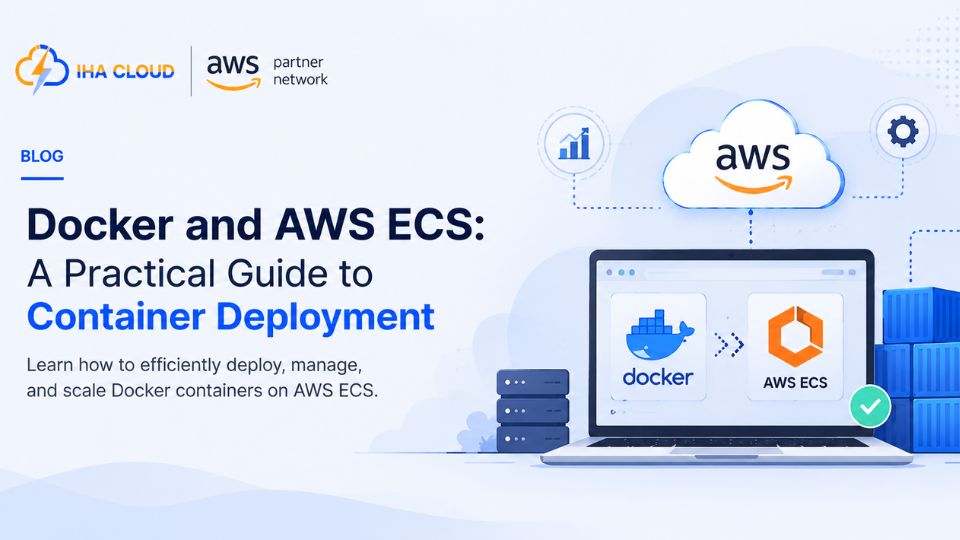
Docker and AWS ECS: A Practical Guide to Container Deployment

Docker and AWS ECS: A Practical Guide to Container Deployment 

Most applications start life on a single server. It works fine until deployments get risky, scaling means manually spinning up more servers, and “it works on my machine” becomes a recurring problem. Containers solve this, and on AWS, ECS is the most direct path to running them in production.  What Docker Actually Solves  A Docker container packages your application with everything it needs to run — code, runtime, libraries, configuration — into a single unit. That unit behaves the same on a developer’s laptop, in staging, and in production.  Where ECS Fits In  Amazon ECS (Elastic Container Service) is AWS’s platform for running containers at scale. It handles scheduling, scaling, and health checks so you are not manually managing where each container runs.  For most growing businesses, ECS on Fargate removes an entire layer of operational work — no instance patching, no capacity planning for the cluster itself.  Setting Up a Basic ECS Deployment  Common Mistakes to Avoid  Is It Worth the Migration?  If your team is deploying manually, scaling by adding more identical servers, or fighting environment inconsistencies, moving to Docker and ECS pays for itself quickly in reduced deployment risk and faster releases. For simple, low-traffic applications, it can be more infrastructure than necessary — the right call depends on how much your deployment process is currently costing you in time and incidents. 

Docker and AWS ECS: A Practical Guide to Container Deployment  Read More »

How AI Can Reduce AWS Cloud Costs Without Compromising Performance

How AI Can Reduce AWS Cloud Costs Without Compromising Performance

As organizations continue to migrate applications to AWS, managing cloud costs has become just as important as ensuring application performance. While AWS offers unmatched scalability and flexibility, it’s common for businesses to overspend due to idle resources, oversized instances, inefficient storage, and poorly configured auto scaling. Artificial Intelligence (AI) is changing the way businesses manage cloud infrastructure. By analyzing usage patterns, predicting demand, and identifying inefficiencies, AI helps organizations optimize AWS environments without affecting application performance or availability. In this blog, we’ll explore how AI reduces AWS cloud costs while keeping your infrastructure secure, reliable, and high-performing. Why AWS Costs Keep Increasing Many businesses experience rising AWS bills because of common infrastructure issues, including: These inefficiencies often go unnoticed until the monthly AWS invoice arrives. How AI Helps Optimize AWS Costs Instead of relying on manual monitoring, AI continuously analyzes cloud infrastructure and recommends improvements based on real-time data. 1. Intelligent Resource Rightsizing Many organizations purchase larger EC2 instances than they actually need. AI continuously monitors: Based on actual usage patterns, AI recommends the most suitable instance type, ensuring you only pay for the resources your applications require. Benefits 2. Smarter Auto Scaling Traditional Auto Scaling reacts after traffic increases. AI goes a step further by predicting future demand using: This allows AWS infrastructure to scale proactively rather than reactively. Benefits 3. Optimizing Docker Containers and Amazon ECS Containerized applications often consume more resources than necessary because CPU and memory limits are configured conservatively. AI analyzes: It then recommends: Result Businesses reduce AWS ECS costs while maintaining application stability. 4. Intelligent Storage Optimization Storage costs increase rapidly when unused data accumulates. AI automatically identifies: It recommends moving data to cost-effective storage classes such as: This significantly lowers storage expenses without sacrificing data availability. 5. AI-Powered Cloud Monitoring Instead of waiting for infrastructure issues to impact users, AI continuously monitors cloud environments to detect anomalies. It identifies: AI alerts teams before small issues become expensive outages. 6. Optimizing Reserved Instances and Savings Plans Choosing between On-Demand, Reserved Instances, and Savings Plans can be challenging. AI analyzes long-term workload patterns and recommends the most cost-effective purchasing strategy. Benefits include: 7. Identifying Idle Resources Unused resources silently increase monthly AWS bills. AI detects: Removing these resources can lead to immediate cost savings. 8. Predictive Cost Forecasting One of AI’s biggest advantages is forecasting future cloud spending. AI predicts: This enables organizations to make informed financial decisions before costs escalate. AI + DevOps = Continuous Cost Optimization When integrated into DevOps workflows, AI continuously evaluates infrastructure changes and deployment patterns. It can: This creates an ongoing cycle of optimization rather than one-time cost reductions. Best Practices for AI-Driven AWS Cost Optimization To maximize the benefits of AI, organizations should: Why Businesses Are Adopting AI for Cloud Cost Management Organizations are embracing AI because it helps them: Rather than replacing cloud engineers, AI empowers them with actionable insights, allowing teams to focus on innovation instead of routine optimization tasks. Conclusion Managing AWS costs is no longer just about reducing expenses—it’s about maximizing the value of every cloud resource. AI enables businesses to make smarter decisions by continuously analyzing infrastructure, predicting demand, and identifying optimization opportunities without compromising performance or reliability. Whether you’re running Docker containers, Amazon ECS services, virtual machines, or large-scale cloud applications, AI-driven optimization can help you achieve significant savings while maintaining a high-performing environment. At IHA Cloud, we help businesses optimize their AWS infrastructure through cloud consulting, DevOps services, application hosting, security audits, and cost optimization strategies. By combining cloud expertise with intelligent automation, we ensure your AWS environment remains secure, efficient, and cost-effective as your business grows. Ready to Optimize Your AWS Costs? If your AWS bill is increasing every month, now is the perfect time to evaluate your cloud infrastructure. IHA Cloud can help you: Contact IHA Cloud today to discover how intelligent cloud optimization can reduce costs while keeping your applications running at peak performance.

How AI Can Reduce AWS Cloud Costs Without Compromising Performance Read More »

Choosing the Right AWS Compute Service: EC2 vs Lambda vs Fargate

Choosing the Right AWS Compute Service: EC2 vs Lambda vs Fargate 

Every AWS project eventually runs into the same question: where should this actually run? The answer is not the same for every workload, and picking the wrong one either costs you more than it should or slows your team down with infrastructure work nobody wanted to do.  Here is how the three main compute options actually differ.  EC2 — Full Control, Full Responsibility  EC2 gives you a virtual machine. You choose the operating system, install what you need, and manage patching, scaling, and security yourself.  If your application looks the same today as it did last month in terms of load, EC2 is usually the most cost-predictable choice.  Lambda — Pay Only When Code Runs  Lambda runs your code in response to an event — an API call, a file upload, a scheduled trigger — and disappears when it is done. There is no server to patch or manage.  For workloads that run occasionally or spike unpredictably, Lambda often costs a fraction of an equivalent EC2 setup.  Fargate — Containers Without Managing Servers  Fargate runs your Docker containers without you provisioning or managing the underlying EC2 instances. You define the container, and AWS handles the infrastructure.  A Practical Way to Decide  Many businesses end up running all three side by side — EC2 for a core application, Lambda for background processing, and Fargate for containerized services. The mistake is picking one and forcing every workload into it. Match the compute model to what the workload actually needs, and the AWS bill usually takes care of itself. 

Choosing the Right AWS Compute Service: EC2 vs Lambda vs Fargate  Read More »

AWS WAF and Shield: Protecting Your Web Applications from Attacks

AWS WAF and Shield: Protecting Your Web Applications from Attacks 

Every public-facing web application receives traffic it never asked for — scanners probing for vulnerabilities, bots scraping content, and occasionally, a deliberate attempt to take the site down. AWS WAF and Shield are the two services built specifically to handle that traffic before it reaches your application.  AWS WAF — Filtering Requests Before They Reach You  WAF (Web Application Firewall) sits in front of your application — typically attached to CloudFront, an Application Load Balancer, or API Gateway — and filters incoming requests based on rules you define.  AWS Shield — DDoS Protection  Shield protects against Distributed Denial of Service attacks, where attackers flood your infrastructure with traffic to make it unavailable.  Most small and mid-sized businesses are adequately covered by Shield Standard combined with a properly configured WAF. Shield Advanced becomes worth the cost for businesses where downtime has a direct, significant revenue impact.  Setting This Up Properly  What Gets Missed  Together, WAF and Shield form the first layer of defense for anything public-facing. Neither replaces good application security practices, but both stop a large share of attacks before your application ever has to deal with them. 

AWS WAF and Shield: Protecting Your Web Applications from Attacks  Read More »

AWS IAM Best Practices: Enforcing Least Privilege Access

AWS IAM Best Practices: Enforcing Least Privilege Access 

IAM (Identity and Access Management) controls who can do what inside your AWS account, and it is where most preventable security incidents actually originate. Not through sophisticated attacks, but through permissions that were broader than they needed to be.  The Principle That Matters Most  Least privilege means every user, role, and service only has the permissions it needs to do its specific job — nothing more. It sounds obvious, but most AWS accounts drift away from it over time as permissions get added for convenience and never removed.  Practical Steps to Get There  Auditing What You Already Have  Service-to-Service Permissions  Common Mistakes  Why This Matters More Than It Seems  A misconfigured security group or an unpatched server is a specific, fixable problem. An IAM role with excessive permissions is a standing risk that sits quietly until something goes wrong — and when it does, the blast radius is defined by exactly how much access that role had. Reviewing IAM permissions is not a one-time setup task; it is something that needs revisiting as the account and team grow. 

AWS IAM Best Practices: Enforcing Least Privilege Access  Read More »

AWS VPC Design Best Practices for Secure, Scalable Architecture

AWS VPC Design Best Practices for Secure, Scalable Architecture

A VPC (Virtual Private Cloud) is the network foundation everything else in your AWS account sits on. Get it wrong early, and you end up re-architecting under pressure later. Get it right, and it quietly supports years of growth without a second thought.  Start With Subnet Separation  This separation alone prevents an entire category of accidental exposure.  Plan Your IP Ranges Before You Need To  Security Groups and NACLs Serve Different Purposes  Most teams over-rely on wide-open security groups. Scope rules to specific ports and specific source security groups rather than open CIDR ranges wherever possible.  Multi-AZ by Default  Connecting to the Outside World  Things Businesses Get Wrong  A well-designed VPC is not something end users ever notice — which is exactly the point. It should quietly enforce security and support growth without becoming a project of its own six months from now. 

AWS VPC Design Best Practices for Secure, Scalable Architecture Read More »

Kubernetes on AWS (EKS)

Kubernetes on AWS (EKS): Is It Right for Your Business? 

Kubernetes on AWS (EKS): Is It Right for Your Business?  Kubernetes has become the default answer to “how do we run containers at scale,” but it is not the right answer for every team. Amazon EKS (Elastic Kubernetes Service) makes running Kubernetes on AWS more manageable, but it does not remove the complexity that comes with Kubernetes itself.  What EKS Actually Manages For You  EKS runs and manages the Kubernetes control plane — the component responsible for scheduling, scaling, and coordinating your containers. AWS handles its availability, patching, and upgrades.  What EKS does not remove is the complexity of Kubernetes itself — namespaces, deployments, services, ingress controllers, and the YAML that ties it all together.  When EKS Makes Sense  When It Is Probably More Than You Need  A large share of businesses that adopt Kubernetes do so because it is the industry standard, not because their architecture demands it. The result is often a small team managing a system built for much larger scale.  A Simpler Path First  If you are unsure, ECS on Fargate solves container orchestration for the vast majority of business applications without the learning curve or the ongoing maintenance Kubernetes requires. Moving to EKS later, once your architecture genuinely needs multi-service, multi-team orchestration at scale, is far easier than reversing an over-engineered Kubernetes setup that a small team is struggling to maintain.  If You Do Move to EKS  Choose EKS because your architecture needs it, not because it is what everyone else is running. 

Kubernetes on AWS (EKS): Is It Right for Your Business?  Read More »

How to Read Your AWS Bill — A Guide for Business Owners

How to Read Your AWS Bill — A Guide for Business Owners

An AWS bill has dozens of line items, cryptic service names, and charges that appear without obvious explanation. Most business owners hand it to their technical team and hope for the best. That is understandable — but the business owner who understands their cloud spend has a significant advantage when it comes to controlling costs.  Here is what the main charges actually mean and where your money is most likely going.  Where to Find Your Bill  Go to the AWS Console → Billing and Cost Management → Bills. You will see a monthly summary broken down by service. Click into any service to see the regional breakdown.  AWS Cost Explorer is more useful for analysis — it lets you visualise spending over time, filter by service, region, and tag, and spot trends before they become problems.  The Biggest Cost Categories  EC2 (Elastic Compute Cloud)  This is usually the largest line item. It covers the compute instances running your servers. Within EC2 you will see:  RDS (Relational Database Service)  Database instance hours plus storage. If you see Multi-AZ in the description, you are paying for two instances (primary + standby). That is the right choice for production but unnecessary for non-critical environments.  S3  Storage cost per GB, PUT/GET request costs, and data transfer out. Most businesses are surprised by request costs — a high-traffic application making millions of S3 API calls can accumulate significant charges even with modest storage.  Data Transfer  AWS charges for data moving out of its network to the internet. Data transfer between AWS services in the same region is free. Data transfer between regions is not. This is a commonly overlooked cost driver for applications that move data between accounts or regions frequently.  What ‘Usage Type’ Means  Each line item has a Usage Type field that explains exactly what was consumed. For example:  Once you learn to read Usage Types, the bill becomes much clearer.  The Most Common Billing Surprises  Immediate Actions to Take 

How to Read Your AWS Bill — A Guide for Business Owners Read More »

migration from shared hosting to aws

10 Steps to Migrate from Shared Hosting to AWS

As your website grows, shared hosting often starts showing its limitations. Slow loading speeds, limited server resources, frequent downtime during traffic spikes, and restricted customization can all affect your website’s performance and user experience. If your business depends on its website, these issues can eventually impact customer satisfaction and even revenue. This is where Amazon Web Services (AWS) becomes a strong alternative. AWS offers scalable infrastructure, better security, improved reliability, and the flexibility to configure your hosting environment according to your business needs. Whether you’re running a WordPress website, an eCommerce store, or a custom web application, migrating to AWS can provide long-term benefits. However, a successful migration requires proper planning. Moving files without preparation can lead to broken websites, database errors, or unnecessary downtime. Following a structured migration process helps ensure that your website remains secure and accessible throughout the transition. In this guide, we’ll walk through the complete migration process in ten easy-to-follow steps. Step 1: Assess Your Current Website The first step before migrating your website is understanding exactly what you’re moving. Many website owners rush directly into setting up an AWS server without evaluating their existing hosting environment. This often leads to missing files, configuration issues, or unexpected downtime. Start by identifying your website’s technology stack. Ask yourself questions such as: Next, review your hosting resources. Note your current disk usage, bandwidth consumption, database size, email accounts, SSL certificates, cron jobs, and DNS settings. These details will help you recreate the same environment on AWS. You should also identify any third-party integrations such as payment gateways, CRM systems, analytics tools, APIs, or SMTP email services. These services may require IP whitelisting or DNS updates after migration. Finally, create a complete inventory of your website. Knowing exactly what exists before migration makes the entire process much smoother and significantly reduces the chances of overlooking important components. Step 2: Choose the Right AWS Services AWS offers hundreds of cloud services, but you don’t need all of them. Choosing the right services based on your website’s requirements helps keep your infrastructure simple, secure, and cost-effective. For most websites, the following AWS services are commonly used: Amazon EC2 Amazon EC2 provides virtual servers where your website will run. You can choose different instance types depending on your traffic, CPU requirements, and memory usage. Unlike shared hosting, EC2 gives you dedicated resources and complete control over your server. Amazon RDS (Optional) If you prefer a managed database solution, Amazon RDS is an excellent choice. AWS automatically handles backups, software updates, monitoring, and failover, reducing administrative work. Amazon S3 S3 is ideal for storing backups, media files, downloadable documents, and other static assets. It offers high durability while reducing the storage load on your main server. Elastic IP An Elastic IP provides a static public IP address for your EC2 instance. This makes DNS configuration easier and prevents your website’s IP from changing after server restarts. Route 53 AWS Route 53 is a managed DNS service that helps direct visitors to your website quickly and reliably. AWS Certificate Manager Instead of purchasing SSL certificates separately, you can manage SSL certificates through AWS Certificate Manager for supported AWS services. Choosing the correct AWS services at the beginning helps you avoid unnecessary expenses while building a scalable infrastructure that can grow alongside your business. Step 3: Launch and Configure Your AWS Server Once you’ve selected the appropriate AWS services, it’s time to create your new hosting environment. Begin by launching an Amazon EC2 instance. Select an operating system that you’re comfortable managing, such as Ubuntu Server or Amazon Linux. Next, choose an instance size based on your expected website traffic and application requirements. After launching the server, configure your Security Groups. These function like virtual firewalls and determine which traffic is allowed to access your server. Typically, you’ll need to allow ports such as: Next, connect to your EC2 instance using SSH and install the necessary software components. Depending on your website, this may include: Once the software is installed, configure your virtual hosts, upload directories, PHP settings, and file permissions to match your existing hosting environment. Before moving any website files, verify that the server is fully operational. A properly configured AWS server forms the foundation for a successful migration and helps minimize issues later in the process. Step 4: Back Up Your Website Before Migration Before making any changes, create a complete backup of your existing website. Even if your hosting provider offers automatic backups, it’s always recommended to keep your own copy. If anything goes wrong during the migration, you’ll be able to restore your website quickly. Your backup should include: Website Files Download all website files from your shared hosting account using cPanel File Manager, FTP, or SSH. This includes: Database Most websites store important data inside a database. Export your MySQL or MariaDB database using phpMyAdmin or the mysqldump command. Your database backup contains: Without the database, your website cannot function properly. Other Important Data Don’t forget to save: Store your backup in multiple locations, such as your local computer and cloud storage. This extra precaution can save hours of recovery work if unexpected issues arise. Step 5: Transfer Website Files to AWS Once your backup is ready, you can move your website files to the new AWS server. There are several ways to upload files, including: For larger websites, tools like rsync are particularly useful because they transfer only changed files, making future updates much faster. After uploading the files, place them inside the correct web directory. For example: The exact location depends on how your web server is configured. Verify File Permissions Incorrect file permissions are one of the most common migration issues. Generally: Avoid giving every file full permissions simply to “make it work.” Proper permissions improve both security and stability. After uploading everything, compare the file count with your original backup to ensure nothing was missed during the transfer. You can also read: How to Migrate from cPanel Hosting to AWS Without Downtime Step

10 Steps to Migrate from Shared Hosting to AWS Read More »

AWS Backup

 AWS Backup: A Reliable Backup Strategy for Your Cloud Infrastructure

Backup strategies fail in two ways: people do not set them up properly, or they set them up and never verify they actually work. Both lead to the same outcome when something goes wrong.  AWS Backup is a centralised service that automates backups across EC2, RDS, Aurora, EFS, DynamoDB, FSx, and Storage Gateway. One console, one set of policies, one audit trail.  What AWS Backup Covers  Before AWS Backup, you had to set up snapshot policies separately for each service. Now you define a Backup Plan — frequency, retention period, lifecycle to cold storage — and assign it to resources by tag.  Setting Up a Backup Plan  A Backup Plan has two components: rules and resource assignments.  Rules define when backups happen and how long they are kept. A typical production setup:  Resource assignments use tags. Tag your production RDS instance with Environment: production and assign that tag to your backup plan. Every resource with that tag is automatically backed up.  Cross-Region and Cross-Account Backup  For serious disaster recovery, copy backups to a different AWS region or a separate AWS account. AWS Backup supports both natively.  Cross-account backup is the most resilient option — even if someone accidentally deletes your AWS account or a ransomware attack encrypts your data, backups in a separate account remain untouched.  The Most Important Step: Test Your Restores  A backup you have never tested is not a backup — it is a hope. Schedule restore tests quarterly at minimum. Pick a random backup, restore it to a test environment, and verify the data is complete and usable.  AWS Backup has a restore testing feature that automates this. Configure it, run it, and get evidence that your backups are valid. This is also required for SOC 2 and ISO 27001 compliance.  Backup vs Replication  Backup and replication are not the same thing. Multi-AZ RDS replication gives you high availability — if one AZ fails, the standby takes over. But replication copies everything, including accidental deletions. Backup gives you point-in-time recovery — the ability to go back to before something went wrong.  You need both for a complete data protection strategy.

 AWS Backup: A Reliable Backup Strategy for Your Cloud Infrastructure Read More »