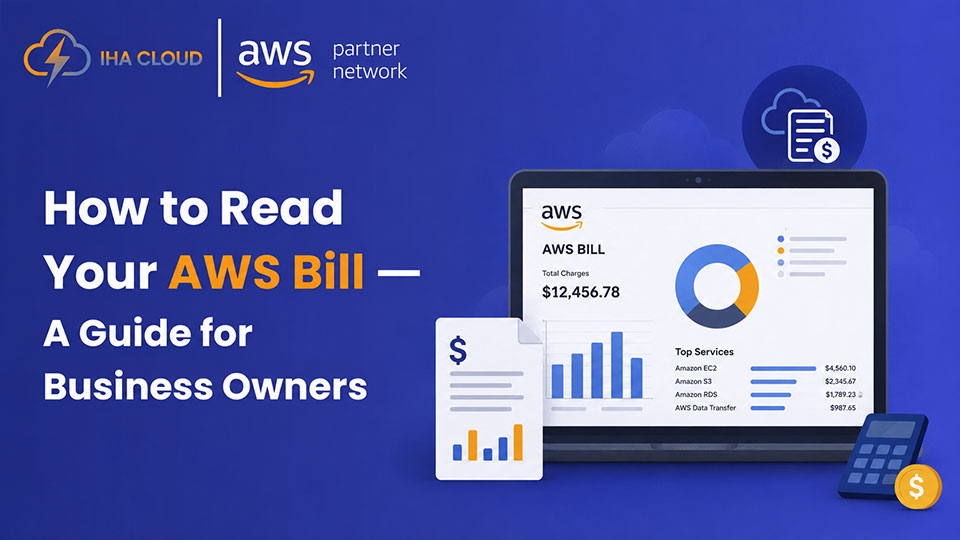
An AWS bill has dozens of line items, cryptic service names, and charges that appear without obvious explanation. Most business owners hand it to their technical team and hope for the best. That is understandable — but the business owner who understands their cloud spend has a significant advantage when it comes to controlling costs.
Here is what the main charges actually mean and where your money is most likely going.
Where to Find Your Bill
Go to the AWS Console → Billing and Cost Management → Bills. You will see a monthly summary broken down by service. Click into any service to see the regional breakdown.
AWS Cost Explorer is more useful for analysis — it lets you visualise spending over time, filter by service, region, and tag, and spot trends before they become problems.
The Biggest Cost Categories
EC2 (Elastic Compute Cloud)
This is usually the largest line item. It covers the compute instances running your servers. Within EC2 you will see:
- On-Demand instances — the default, billed by the hour at the full rate
- Reserved Instance savings — a credit showing what you saved if you have commitments
- EBS (Elastic Block Store) volumes — the disk storage attached to your instances
- Data transfer — charges for traffic moving out of AWS
RDS (Relational Database Service)
Database instance hours plus storage. If you see Multi-AZ in the description, you are paying for two instances (primary + standby). That is the right choice for production but unnecessary for non-critical environments.
S3
Storage cost per GB, PUT/GET request costs, and data transfer out. Most businesses are surprised by request costs — a high-traffic application making millions of S3 API calls can accumulate significant charges even with modest storage.
Data Transfer
AWS charges for data moving out of its network to the internet. Data transfer between AWS services in the same region is free. Data transfer between regions is not. This is a commonly overlooked cost driver for applications that move data between accounts or regions frequently.
What ‘Usage Type’ Means
Each line item has a Usage Type field that explains exactly what was consumed. For example:
- APS1-BoxUsage:t3.medium — EC2 t3.medium instance hours in ap-south-1
- APS1-DataTransfer-Out-Bytes — data transferred out from ap-south-1 to the internet
- APS1-RDS:GP2-Storage — RDS GP2 SSD storage in ap-south-1
Once you learn to read Usage Types, the bill becomes much clearer.
The Most Common Billing Surprises
- Data transfer out charges — often underestimated, especially for media-heavy applications
- Idle resources — EC2 instances and RDS databases running in dev and test environments over weekends and holidays
- Snapshot accumulation — EBS snapshots and RDS automated backups that are never deleted
- NAT Gateway charges — each GB passing through a NAT Gateway incurs a fee; high-volume applications should evaluate alternatives
Immediate Actions to Take
- Enable AWS Cost Anomaly Detection — it alerts you when spending deviates unexpectedly
- Set a billing alert via CloudWatch for a threshold that would concern you
- Tag every resource by environment (production, staging, dev) — without tags, you cannot tell which resources are driving costs
- Review the Savings Plans and Reserved Instance recommendations in Cost Explorer — if you have stable workloads, the savings are significant