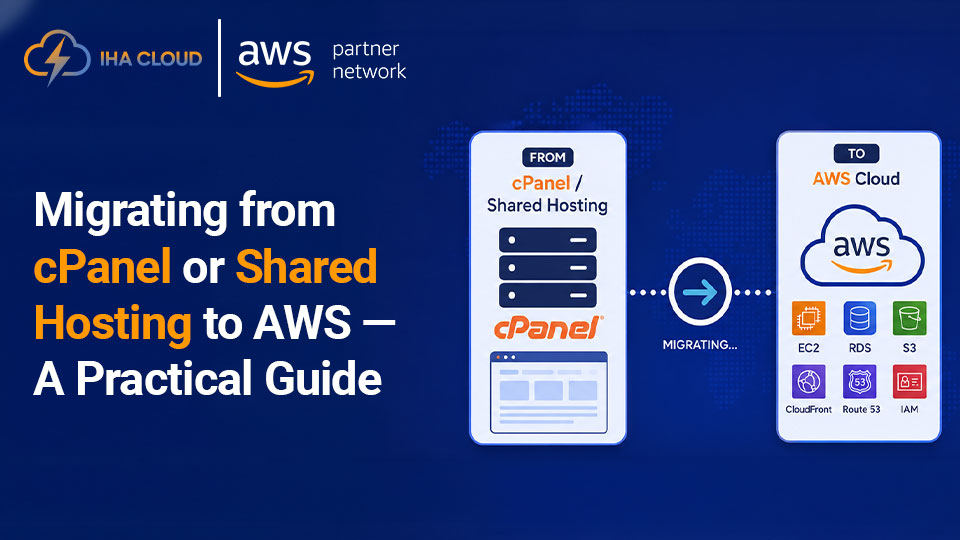
As your website grows, shared hosting often starts showing its limitations. Slow loading speeds, limited server resources, frequent downtime during traffic spikes, and restricted customization can all affect your website’s performance and user experience. If your business depends on its website, these issues can eventually impact customer satisfaction and even revenue.
This is where Amazon Web Services (AWS) becomes a strong alternative. AWS offers scalable infrastructure, better security, improved reliability, and the flexibility to configure your hosting environment according to your business needs. Whether you’re running a WordPress website, an eCommerce store, or a custom web application, migrating to AWS can provide long-term benefits.
However, a successful migration requires proper planning. Moving files without preparation can lead to broken websites, database errors, or unnecessary downtime. Following a structured migration process helps ensure that your website remains secure and accessible throughout the transition.
In this guide, we’ll walk through the complete migration process in ten easy-to-follow steps.
Step 1: Assess Your Current Website
The first step before migrating your website is understanding exactly what you’re moving. Many website owners rush directly into setting up an AWS server without evaluating their existing hosting environment. This often leads to missing files, configuration issues, or unexpected downtime.
Start by identifying your website’s technology stack. Ask yourself questions such as:
- Is the website built on WordPress, Laravel, Joomla, Magento, or custom PHP?
- Which PHP version is currently running?
- Does the application require specific extensions or server modules?
- Is the database MySQL, MariaDB, or PostgreSQL?
Next, review your hosting resources. Note your current disk usage, bandwidth consumption, database size, email accounts, SSL certificates, cron jobs, and DNS settings. These details will help you recreate the same environment on AWS.
You should also identify any third-party integrations such as payment gateways, CRM systems, analytics tools, APIs, or SMTP email services. These services may require IP whitelisting or DNS updates after migration.
Finally, create a complete inventory of your website. Knowing exactly what exists before migration makes the entire process much smoother and significantly reduces the chances of overlooking important components.
Step 2: Choose the Right AWS Services
AWS offers hundreds of cloud services, but you don’t need all of them. Choosing the right services based on your website’s requirements helps keep your infrastructure simple, secure, and cost-effective.
For most websites, the following AWS services are commonly used:
Amazon EC2
Amazon EC2 provides virtual servers where your website will run. You can choose different instance types depending on your traffic, CPU requirements, and memory usage. Unlike shared hosting, EC2 gives you dedicated resources and complete control over your server.
Amazon RDS (Optional)
If you prefer a managed database solution, Amazon RDS is an excellent choice. AWS automatically handles backups, software updates, monitoring, and failover, reducing administrative work.
Amazon S3
S3 is ideal for storing backups, media files, downloadable documents, and other static assets. It offers high durability while reducing the storage load on your main server.
Elastic IP
An Elastic IP provides a static public IP address for your EC2 instance. This makes DNS configuration easier and prevents your website’s IP from changing after server restarts.
Route 53
AWS Route 53 is a managed DNS service that helps direct visitors to your website quickly and reliably.
AWS Certificate Manager
Instead of purchasing SSL certificates separately, you can manage SSL certificates through AWS Certificate Manager for supported AWS services.
Choosing the correct AWS services at the beginning helps you avoid unnecessary expenses while building a scalable infrastructure that can grow alongside your business.
Step 3: Launch and Configure Your AWS Server
Once you’ve selected the appropriate AWS services, it’s time to create your new hosting environment.
Begin by launching an Amazon EC2 instance. Select an operating system that you’re comfortable managing, such as Ubuntu Server or Amazon Linux. Next, choose an instance size based on your expected website traffic and application requirements.
After launching the server, configure your Security Groups. These function like virtual firewalls and determine which traffic is allowed to access your server. Typically, you’ll need to allow ports such as:
- HTTP (80)
- HTTPS (443)
- SSH (22)
- Database ports (only if required and secured)
Next, connect to your EC2 instance using SSH and install the necessary software components. Depending on your website, this may include:
- Apache or Nginx
- PHP
- MySQL or MariaDB
- Required PHP extensions
- Composer
- Git
- Node.js (if applicable)
Once the software is installed, configure your virtual hosts, upload directories, PHP settings, and file permissions to match your existing hosting environment.
Before moving any website files, verify that the server is fully operational. A properly configured AWS server forms the foundation for a successful migration and helps minimize issues later in the process.
Step 4: Back Up Your Website Before Migration
Before making any changes, create a complete backup of your existing website. Even if your hosting provider offers automatic backups, it’s always recommended to keep your own copy. If anything goes wrong during the migration, you’ll be able to restore your website quickly.
Your backup should include:
Website Files
Download all website files from your shared hosting account using cPanel File Manager, FTP, or SSH. This includes:
- HTML, PHP, CSS, and JavaScript files
- Themes and plugins (for WordPress)
- Uploaded images, videos, and documents
- Configuration files such as
.htaccess,wp-config.php, or.env
Database
Most websites store important data inside a database. Export your MySQL or MariaDB database using phpMyAdmin or the mysqldump command.
Your database backup contains:
- User accounts
- Blog posts
- Product information
- Customer details
- Website settings
- Comments and orders
Without the database, your website cannot function properly.
Other Important Data
Don’t forget to save:
- SSL certificates (if self-managed)
- Email account settings
- Cron job configurations
- DNS records
- Custom server configurations
Store your backup in multiple locations, such as your local computer and cloud storage. This extra precaution can save hours of recovery work if unexpected issues arise.
Step 5: Transfer Website Files to AWS
Once your backup is ready, you can move your website files to the new AWS server.
There are several ways to upload files, including:
- SCP (Secure Copy)
- SFTP using FileZilla or WinSCP
- rsync for faster synchronization
- Git (if your website uses version control)
For larger websites, tools like rsync are particularly useful because they transfer only changed files, making future updates much faster.
After uploading the files, place them inside the correct web directory. For example:
/var/www/html/var/www/yourdomain.com/public_html
The exact location depends on how your web server is configured.
Verify File Permissions
Incorrect file permissions are one of the most common migration issues.
Generally:
- Directories should have appropriate execute and read permissions.
- Website files should be readable by the web server.
- Sensitive configuration files should not be publicly accessible.
Avoid giving every file full permissions simply to “make it work.” Proper permissions improve both security and stability.
After uploading everything, compare the file count with your original backup to ensure nothing was missed during the transfer.
You can also read: How to Migrate from cPanel Hosting to AWS Without Downtime
Step 6: Import the Database and Update Configuration
With your website files in place, the next step is connecting them to a working database.
Start by creating a new database on your AWS server or Amazon RDS.
Then:
- Create a database user.
- Assign a strong password.
- Grant the required privileges.
- Import your SQL backup.
Once the import finishes successfully, update your website’s configuration file with the new database information.
Depending on your website platform, this could be:
wp-config.php.envconfig.phpdatabase.php
Update the following values carefully:
- Database name
- Username
- Password
- Database host
- Port number (if different)
Even one incorrect character can prevent your website from connecting to the database.
Check Internal URLs
If you’re changing your domain or server path during migration, verify that:
- Image URLs work correctly.
- Internal links are functional.
- Asset paths are valid.
- API endpoints are updated if necessary.
For WordPress websites, you may also need to update the Site URL and Home URL values in the database if the website is being tested on a temporary domain.
At this stage, your website should be able to load from the AWS server, although it may not yet be publicly accessible through your main domain. That’s perfectly normal—we’ll handle testing and DNS updates in the final part of this guide.
Step 7: Configure Your Website and Server Settings
Before making your AWS server live, verify that all necessary configurations are in place.
Configure Your Web Server
Depending on whether you’re using Apache or Nginx, ensure that:
- Virtual hosts (or server blocks) are correctly configured.
- The document root points to the correct website directory.
- PHP is properly integrated with your web server.
- URL rewriting is enabled if your application requires it.
For WordPress websites, check that permalink settings work correctly. For frameworks like Laravel or CodeIgniter, ensure the public directory is configured as the document root.
Install an SSL Certificate
A secure website is essential for both user trust and SEO. If your site will use HTTPS (which it should), install and configure an SSL certificate.
After installation:
- Force HTTP traffic to redirect to HTTPS.
- Verify there are no mixed-content warnings.
- Confirm that the SSL certificate is valid and functioning correctly.
Recreate Scheduled Tasks
Many websites rely on automated background tasks. Reconfigure any cron jobs that existed on your shared hosting account.
These might include:
- Automated backups
- Email notifications
- Report generation
- Database cleanup
- Cache clearing
- Scheduled application tasks
Also, test outgoing email functionality. Contact forms, password reset emails, order confirmations, and notifications should all work as expected.
Taking the time to review these settings ensures your website behaves exactly as it did before the migration—only with the added benefits of AWS.
Step 8: Test Everything Before Updating DNS
One of the biggest mistakes website owners make is updating their DNS records before testing the migrated site. Instead, verify that everything works correctly while the website is still running on the AWS server.
You can test the site using:
- The EC2 public IP address (if your application supports it)
- A temporary subdomain
- A local hosts file entry that maps your domain to the new server
During testing, check the following:
Website Functionality
Navigate through your website and ensure:
- Every important page loads correctly.
- Navigation menus work.
- Images, videos, and downloadable files display properly.
- CSS and JavaScript assets load without errors.
Forms and User Actions
Test all interactive features, including:
- Contact forms
- Login and registration
- Search functionality
- Shopping cart and checkout (for eCommerce sites)
- Payment gateway integration
- User dashboards
Performance and Logs
Monitor your server logs for any warnings or errors. Pay attention to:
- PHP errors
- Database connection issues
- Missing files
- Permission errors
- Slow-loading pages
This is also a good opportunity to compare your website’s loading speed with its previous shared hosting environment. In many cases, AWS provides noticeably faster performance when properly configured.
Only move on to the next step once you’re confident everything is working as expected.
Step 9: Update DNS and Point Your Domain to AWS
After successful testing, it’s time to make your AWS server live.
Update your domain’s DNS records by changing the relevant A record (or other required records) to point to your AWS server’s Elastic IP address.
If possible, reduce the DNS TTL (Time to Live) a day before migration. A lower TTL helps DNS changes propagate more quickly, reducing the time visitors may be directed to the old server.
Keep in mind that DNS propagation can take anywhere from a few minutes to 48 hours, depending on the user’s ISP and cached records. During this period:
- Monitor traffic to both the old and new servers if necessary.
- Avoid making content changes on the old server, as they won’t automatically sync to AWS.
- Keep your previous hosting account active until you’re sure all traffic has shifted successfully.
This precaution provides a safety net in case any unexpected issues arise.
Step 10: Monitor, Secure, and Optimize Your AWS Environment
Your migration may be complete, but managing your AWS server is an ongoing responsibility. Regular monitoring and optimization help maintain performance, security, and reliability over time.
Enable Monitoring
Use monitoring tools to keep an eye on your server’s health. Watch metrics such as:
- CPU utilization
- Memory usage
- Disk space
- Network traffic
- Application response times
Monitoring allows you to identify bottlenecks before they impact users.
Set Up Regular Backups
Automated backups are essential for disaster recovery. Create a backup strategy that includes:
- Website files
- Databases
- Server snapshots
- Configuration files
Test your backups periodically to ensure they can be restored successfully.
Improve Security
Protect your AWS environment by following security best practices, including:
- Restricting SSH access to trusted IP addresses.
- Keeping the operating system and software up to date.
- Using strong passwords and SSH key authentication.
- Configuring a firewall and reviewing security group rules.
- Following the principle of least privilege for user access.
Optimize Website Performance
To get the most from AWS, consider additional optimizations such as:
- Enabling server-side caching.
- Compressing images and static assets.
- Using a Content Delivery Network (CDN) for faster global content delivery.
- Optimizing your database by removing unnecessary data and indexing frequently queried tables.
- Enabling GZIP or Brotli compression and browser caching where appropriate.
Regular maintenance and optimization ensure your website continues to perform well as traffic grows.
Final Thoughts
Migrating from shared hosting to AWS may seem challenging at first, but breaking the process into manageable steps makes it much more approachable. By carefully assessing your existing environment, selecting the right AWS services, backing up your data, transferring files and databases, thoroughly testing your site, and monitoring it after launch, you can complete the migration with minimal disruption.
The move to AWS gives you greater control over your hosting environment, improved scalability, stronger security, and the flexibility to handle future growth. While the initial setup requires more effort than traditional shared hosting, the long-term benefits often outweigh the learning curve.
Whether you’re running a small business website, an online store, or a growing web application, a well-planned migration to AWS can provide a solid foundation for better performance and reliability in the years ahead.
Frequently Asked Questions
Migrating to AWS gives your website better performance, improved scalability, enhanced security, and greater control over server resources compared to traditional shared hosting.
Yes. By preparing your AWS server in advance, testing the website thoroughly, and updating DNS only after verification, you can minimize or even avoid downtime during migration.
The most commonly used AWS services include Amazon EC2 for hosting, Amazon RDS for managed databases, Amazon S3 for backups and media storage, Route 53 for DNS management, and AWS Certificate Manager for SSL certificates.
The migration time depends on your website’s size and complexity. A small business website may take a few hours, while larger websites or eCommerce stores can take a full day or longer.
Basic server administration knowledge is helpful. However, if you’re unfamiliar with AWS or Linux server management, working with an experienced migration provider can ensure a smooth and secure transition.